Polyguard PreScreen for Greenhouse
| Product | Polyguard PreScreen |
| ATS | Greenhouse (Job Board API + Harvest v1/v2) |
| Console | console.polyguard.ai |
| Setup time | approximately 20 minutes |
| Contact | [email protected] |
Setting up through the PreScreen /admin page instead?
See the legacy admin page guide. That page is being retired; use this guide for anything new.
1. Overview
PreScreen gates every application on a Polyguard Trust Check: a short check, completed on the candidate's phone, that confirms a real person is applying. Unverified candidates are held in the first stage of your pipeline; verified ones are advanced automatically, with the verification recorded on the application.
How it works
Applications reach Greenhouse two ways, and PreScreen covers both.
| Where the candidate applies | How it is gated | |
|---|---|---|
| Hosted apply | Your Polyguard careers site | The form holds the submit until the Trust Check passes, then submits to Greenhouse with the verification attached |
| Direct apply | Greenhouse itself, via LinkedIn, Indeed, or a referral | Greenhouse notifies Polyguard, which emails the candidate a Trust Check and holds them in the first stage until they complete it |
Most applications arrive the second way, which is why the web hook in Section 5 is not optional.
What you will configure
- A PreScreen app in the Polyguard Console, with its own hostname
- Two Greenhouse API keys: Job Board (to submit) and Harvest (to advance)
- A custom application field that records the verification
- A
Human Verificationstage on each protected job - A web hook from Greenhouse to Polyguard
Who does what
Steps marked (Polyguard) need a Polyguard staff account. Everything else an account admin can do.
2. Prerequisites
| Requirement | Details |
|---|---|
| Greenhouse access | A user who can manage Dev Center (typically Site Admin) and edit interview plans |
| Polyguard account | Console access at console.polyguard.ai with the admin role |
| Brand assets | Logo, exact brand colors, and the company display name for the careers site |
| A test job | One open job you can apply to end to end before going live |
Secrets are shown once
Greenhouse displays an API key exactly once, and the Polyguard Console stores it write-only, showing only the last 4 characters afterwards. Copy each value into the Console the moment you create it.
3. Collect your Greenhouse values
Everything in this section lives under Configure (⚙️) → Dev Center, except the custom field and the pipeline stage.
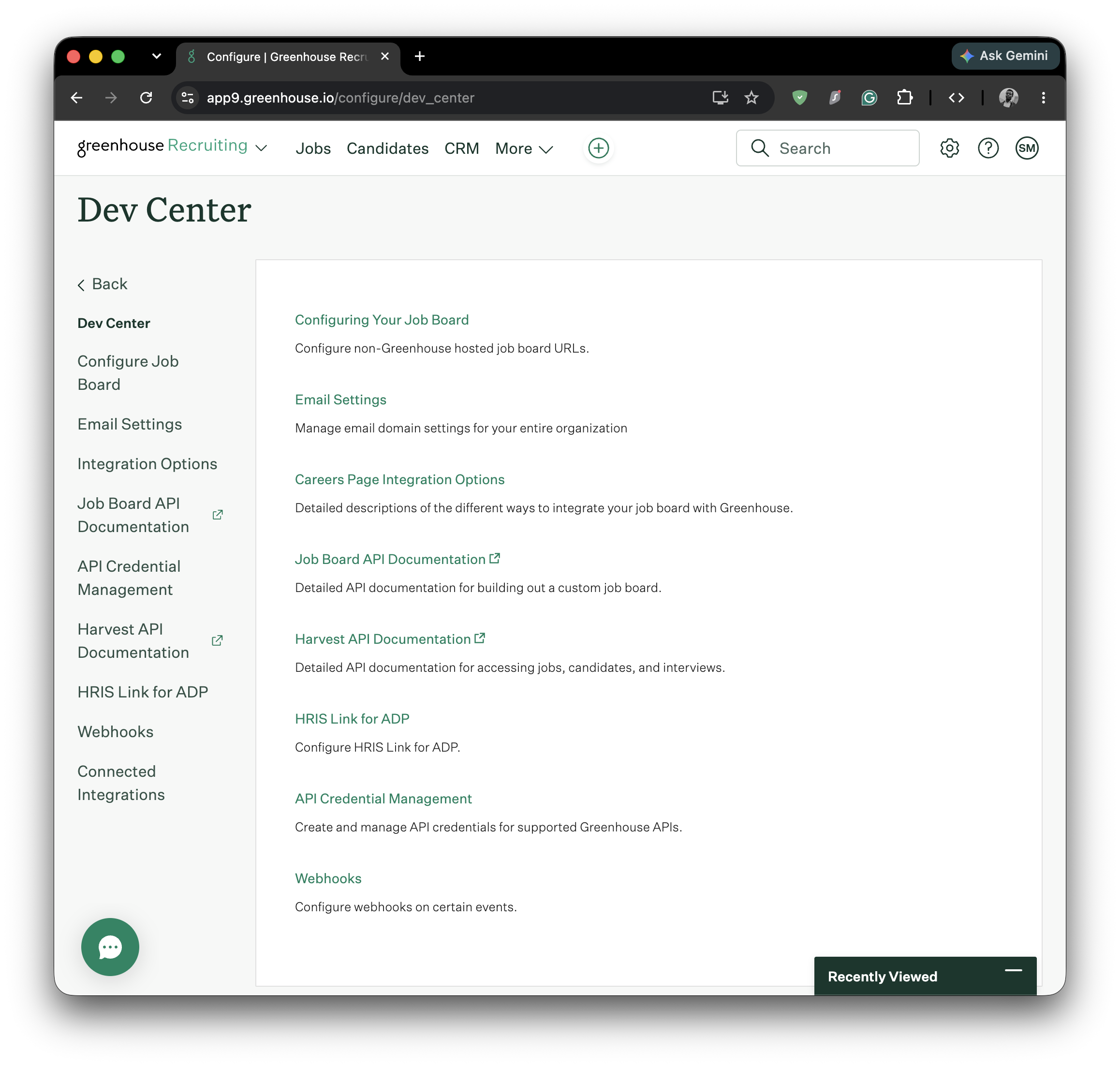
Work through 3a to 3f and keep the values to hand. You will paste them into the Console in Section 4.
3a. Job Board API key
-
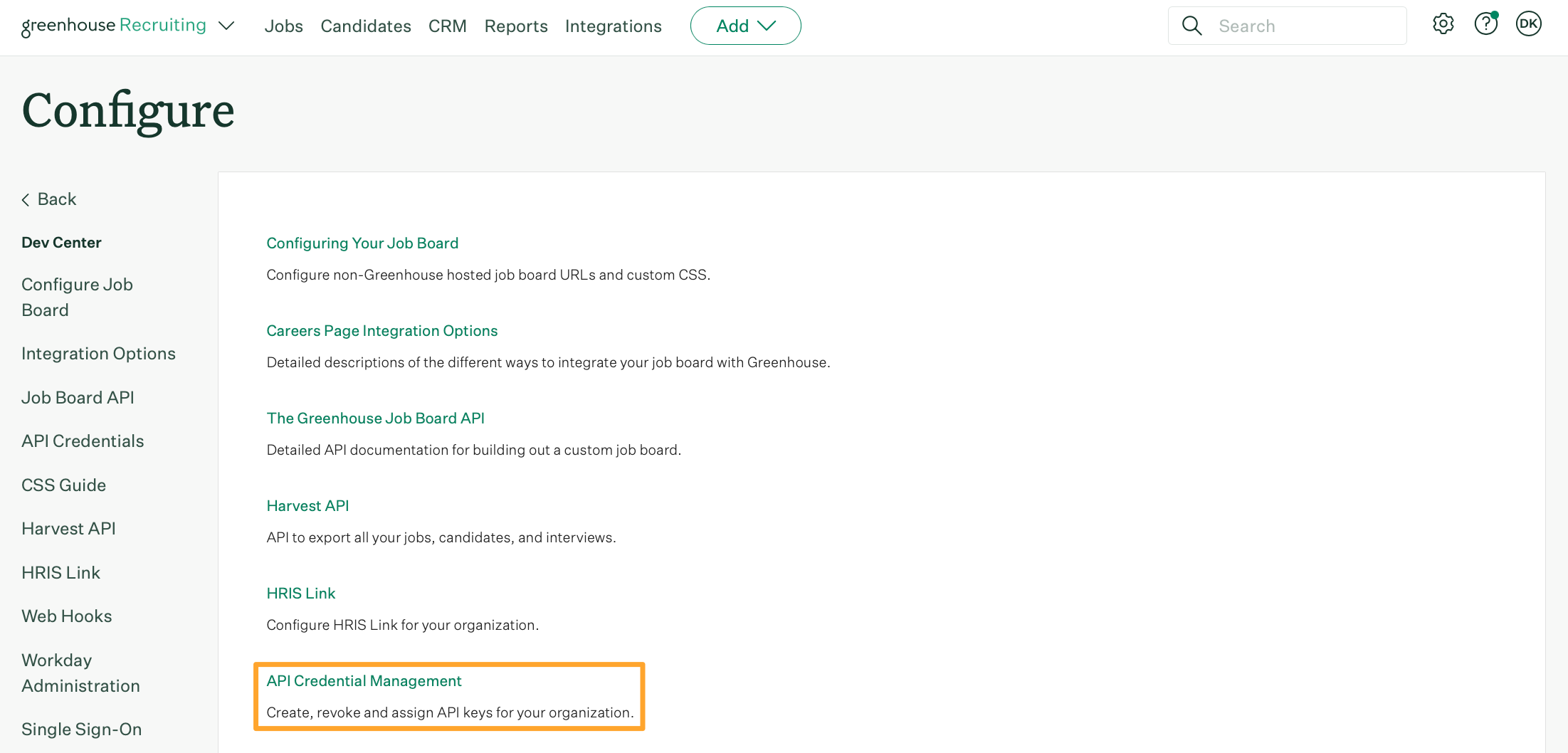
Open API Credential Management in the Dev Center sidebar.
-
Click Create new API credentials, top right.
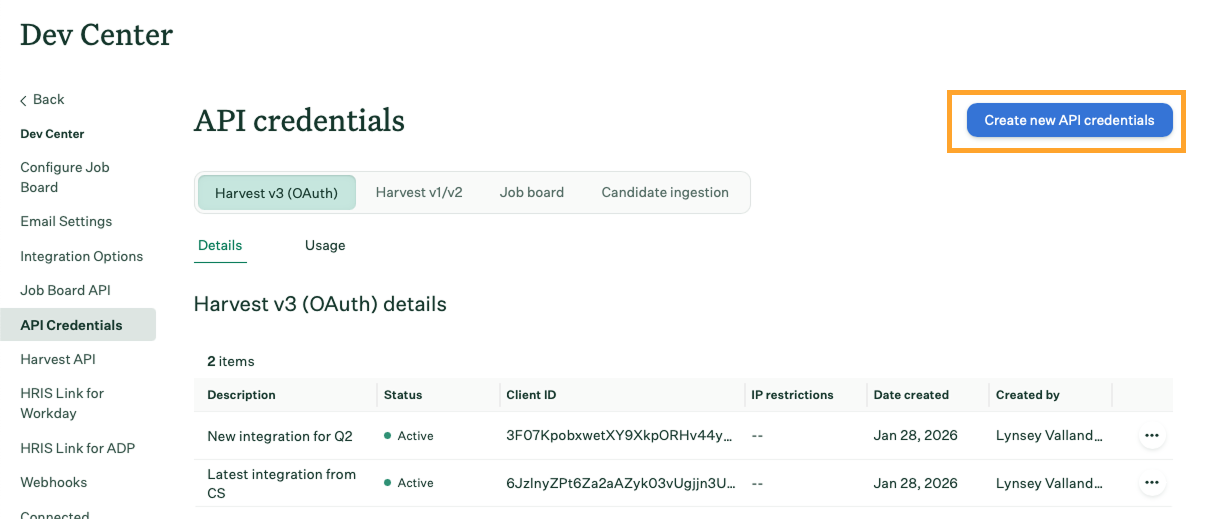
-
Fill in:
- API Type:
Job Board - Partner:
Unlisted vendor, orCustom - Description:
Polyguard: Job Board
- API Type:
- Click Manage permissions and grant:
- POST Submit Application
- Copy the key, then click I have stored the API Key.
Demo mode
Leaving this blank later keeps the careers site in demo mode: it shows exactly what it would have submitted, without posting to Greenhouse. That is useful for a dry run before going live.
3b. Board token
The slug in your public board URL, job-boards.greenhouse.io/<your-board-token>. Confirm it returns your live roles. No key is needed, these endpoints are public:
curl -s "https://boards-api.greenhouse.io/v1/boards/<your-board-token>/jobs" | head -c 300
3c. Custom field for the verification token
One org-wide field, created once. See Greenhouse's Create a new custom application field.
- Configure → Custom Options → Application → Add Field.
- Fill in:
- Name:
Polyguard Verification Token - Field type:
Single-line text
- Name:
- Save, reopen the field, and note the generated field key, for example
polyguard_verification_token.
3d. The Human Verification stage
- Open a job → Job Setup → Interview Plan → Add stage → Create a custom stage.
- Fill in:
- Stage name:
Human Verification, spelled exactly - Position: second, immediately after the first stage
- Stage name:
- Save.
Greenhouse does not allow a custom first stage. Applications land in the first stage, unverified candidates are held there, and PreScreen advances them into Human Verification once they pass.
Every protected job needs the stage
Teams whose pipelines name these stages differently can be listed under Pipeline stages by team on the Candidate verification card of the PreScreen settings page, with their own initial and verified stage names.
The stage must exist, with the same name and in second position, on every job you want protected. Use Edit job stage in bulk to roll it out across open jobs.
3e. On-behalf-of user
Greenhouse attributes every stage move to a real user. Pick one, ideally a dedicated recruiting-ops account.
- Configure → Users and open that user.
- Read the numeric id from the end of the URL. For example,
app.greenhouse.io/account/user/12345gives12345.
3f. Harvest API key
- API Credential Management → Create new API credentials.
- Fill in:
- API Type:
Harvest, not Harvest V3, which is not supported - Partner:
Unlisted vendor, orCustom - Description:
Polyguard: Harvest
- API Type:
- Click Manage permissions and grant only these:
| Scope | Why PreScreen needs it |
|---|---|
| Job Stages → Get: Retrieve Job Stages for Job | Find the gate stage in a job's pipeline |
| Applications → Patch: Edit Application | Write the verification token to the custom field |
| Applications → Move: Move Application | Advance a verified candidate |
| Applications → Get: Retrieve / List Applications | Read application status and source |
| Candidates → Get: Retrieve / List Candidates | Read candidate name and email |
| Sources → Get: List Sources | Resolve where an application came from |
- Save, then copy the key.
Edit Application is the one people miss
Without it the token write is refused with a 403 while the candidate still advances, so the field silently stays empty and nothing looks broken.
4. Configure the app in Polyguard
4a. Create the PreScreen app (Polyguard)
Console → Create App → app type PreScreen.
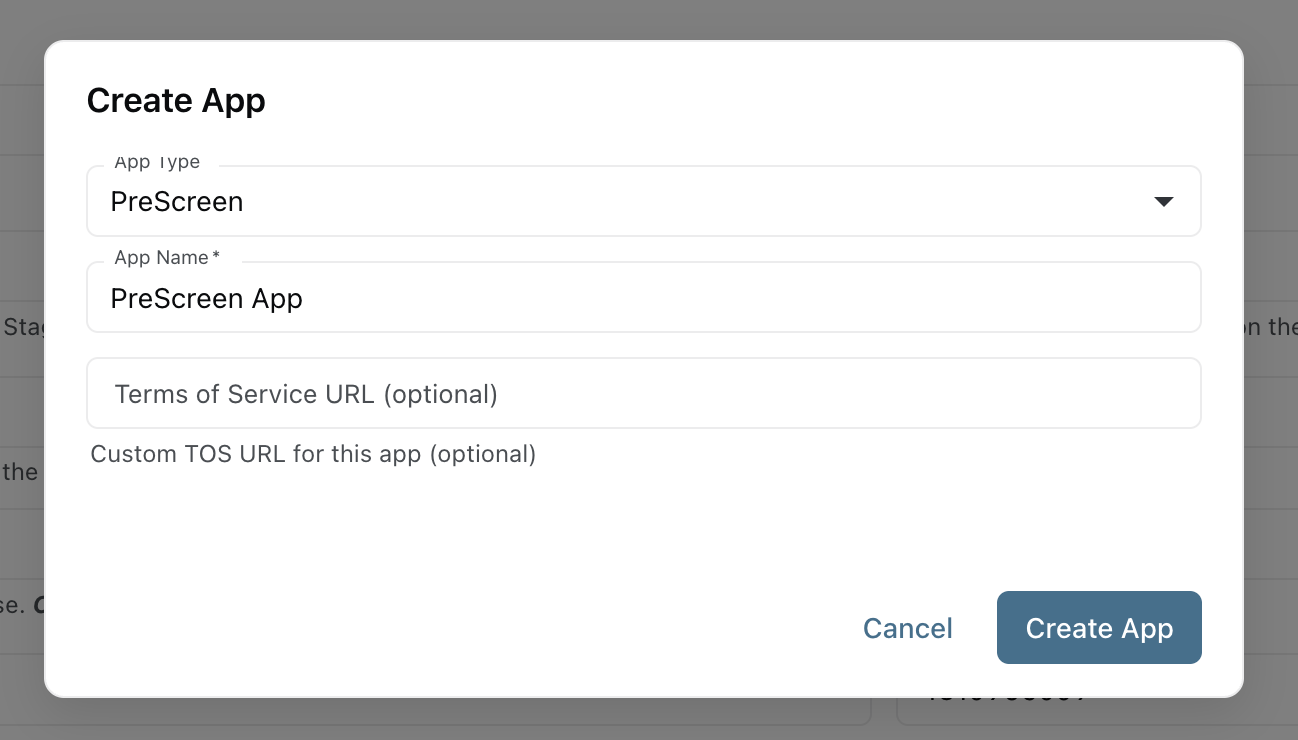
Creating it reserves a hostname of the form {account-slug}.prescreen.polyguard.ai. A second tenant on the same account gets -2, -3, and so on.
4b. Check the hostname (Polyguard to change)
Settings → Prescreen → Hostnames shows the host this tenant is served on. Account admins can read it; only Polyguard staff can change it.
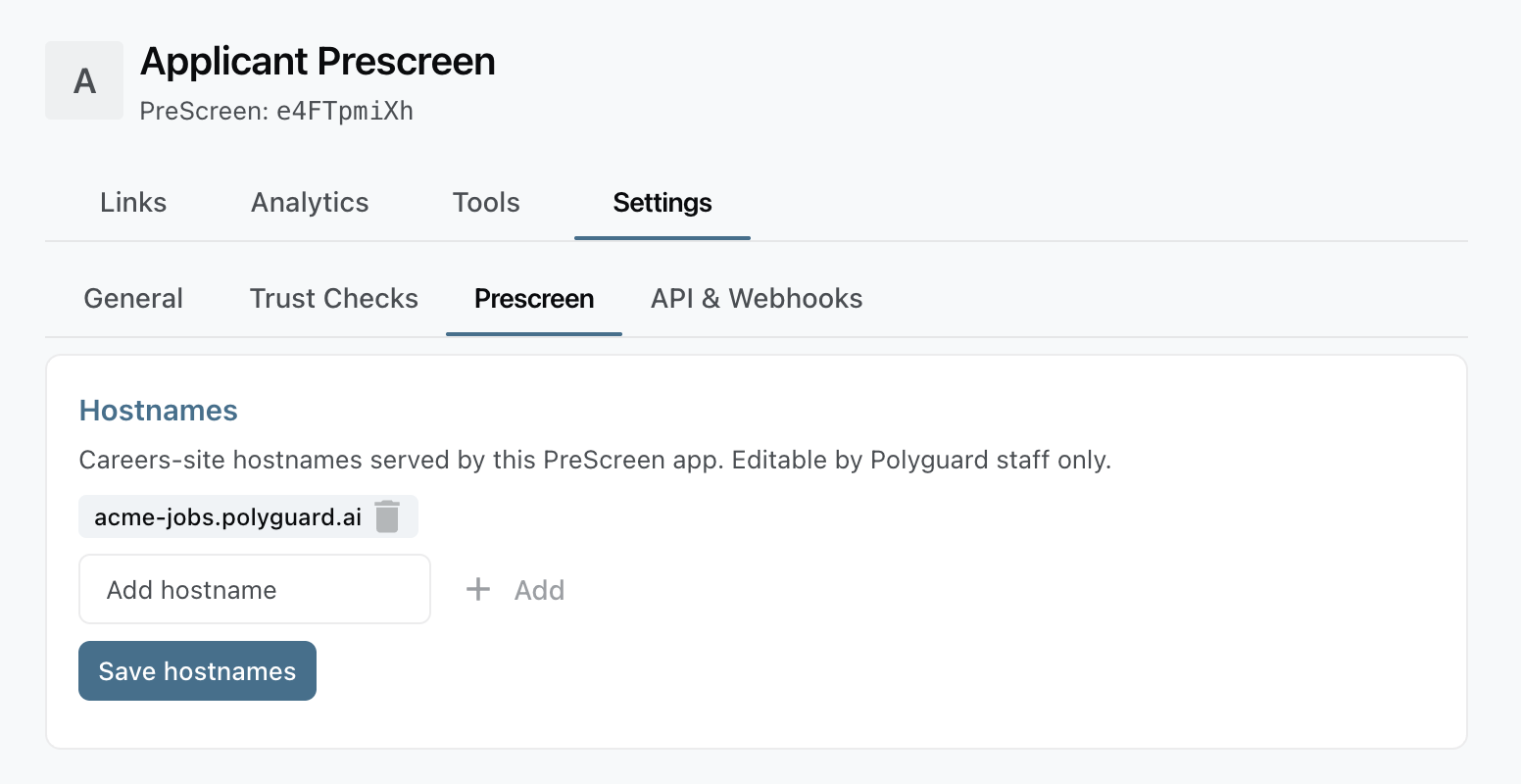
It matters beyond the address bar: the web hook URL in Section 5 is built from it, and so is the address Polyguard delivers verification results to.
Note
The reserved name is not a live site until Polyguard attaches it to the tenant's deployment. That is a Polyguard task and does not block the rest of this guide.
4c. ATS connection
Settings → Prescreen → ATS connection, provider Greenhouse.
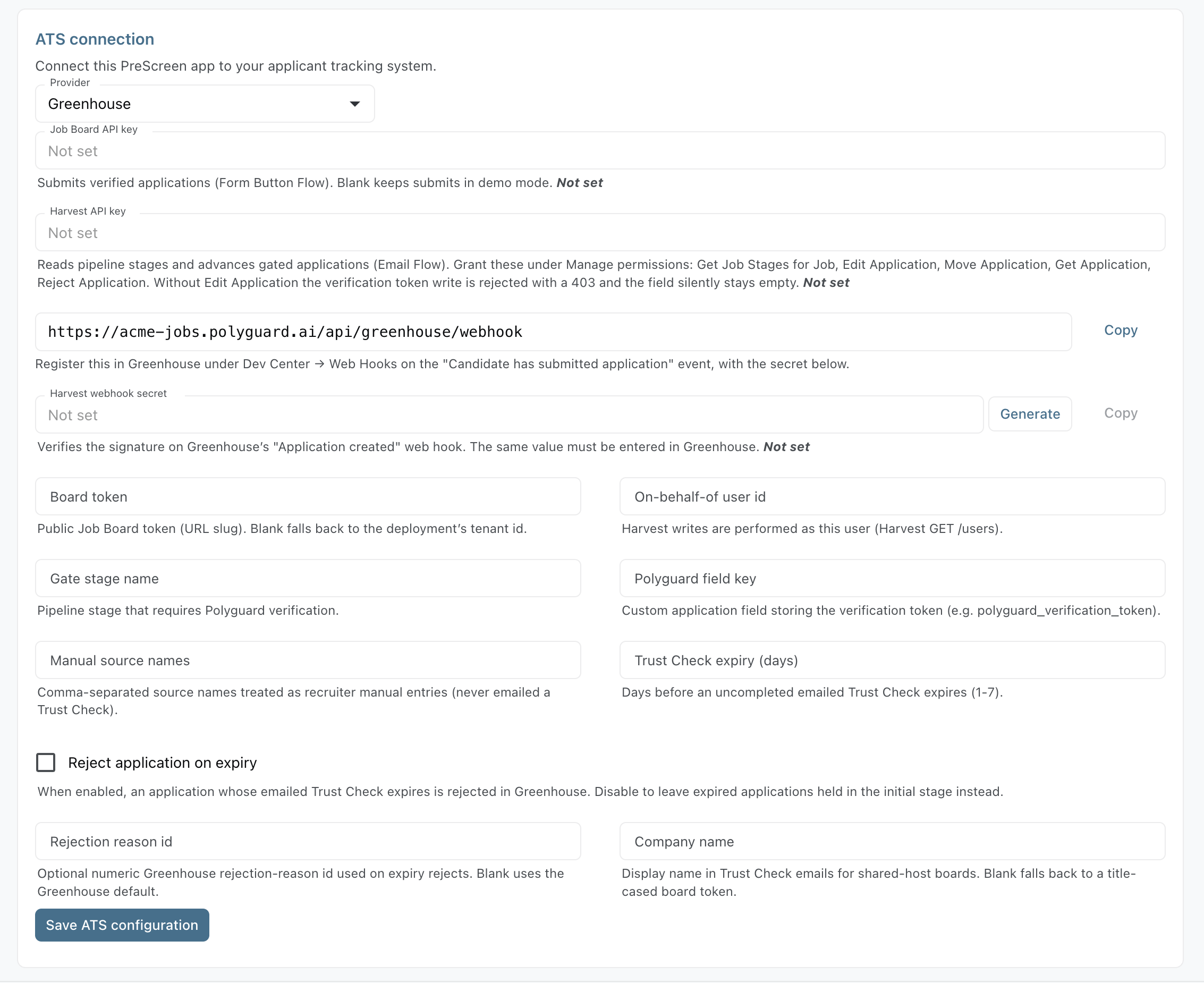
| Field | Value | From |
|---|---|---|
| Job Board API key | the Job Board key | 3a |
| Harvest API key | the Harvest key | 3f |
| Harvest webhook secret | generated in Section 5 | |
| Board token | your board slug | 3b |
| On-behalf-of user id | the numeric user id | 3e |
| Gate stage name | Human Verification | 3d |
| Polyguard field key | e.g. polyguard_verification_token | 3c |
| Manual source names | optional, defaults to Internal Applicant | sources never emailed a Trust Check |
| Trust Check expiry (days) | optional, defaults to 3 | 1 to 7 |
| Reject application on expiry | optional | otherwise expired applications stay held |
| Rejection reason id | optional | Greenhouse's default is used when blank |
| Company name | optional | display name in Trust Check emails |
Click Save ATS configuration. Secrets clear from the form on save and show their last 4 characters afterwards; leaving a secret blank keeps the stored value rather than clearing it.
5. Register the web hook in Greenhouse
Greenhouse notifies Polyguard whenever a candidate submits an application. This is what gates direct applies, and what advances hosted ones.
5a. Get the URL and secret from the Console
In the ATS connection form, directly above Harvest webhook secret:

- Copy the web hook URL.
- Click Generate next to Harvest webhook secret, then copy the value.
- Click Save ATS configuration.
Copy the secret before you save
It is readable only until then; afterwards the Console shows the last 4 characters and nothing else. If you lose it, generate a new one and update Greenhouse to match.
5b. Create the web hook
Configure (⚙️) → Dev Center → Web Hooks → Create a new web hook:
| Setting | Value |
|---|---|
| Name | Polyguard: Candidate submitted application |
| When | Candidate has submitted application |
| Endpoint URL | the URL copied in 5a, exactly as shown |
| Secret key | the secret generated in 5a, identical on both sides |
| Error Recipient Email | [email protected], so Polyguard is alerted if deliveries start failing |
| Disabled? | No |
Click Create Web hook.
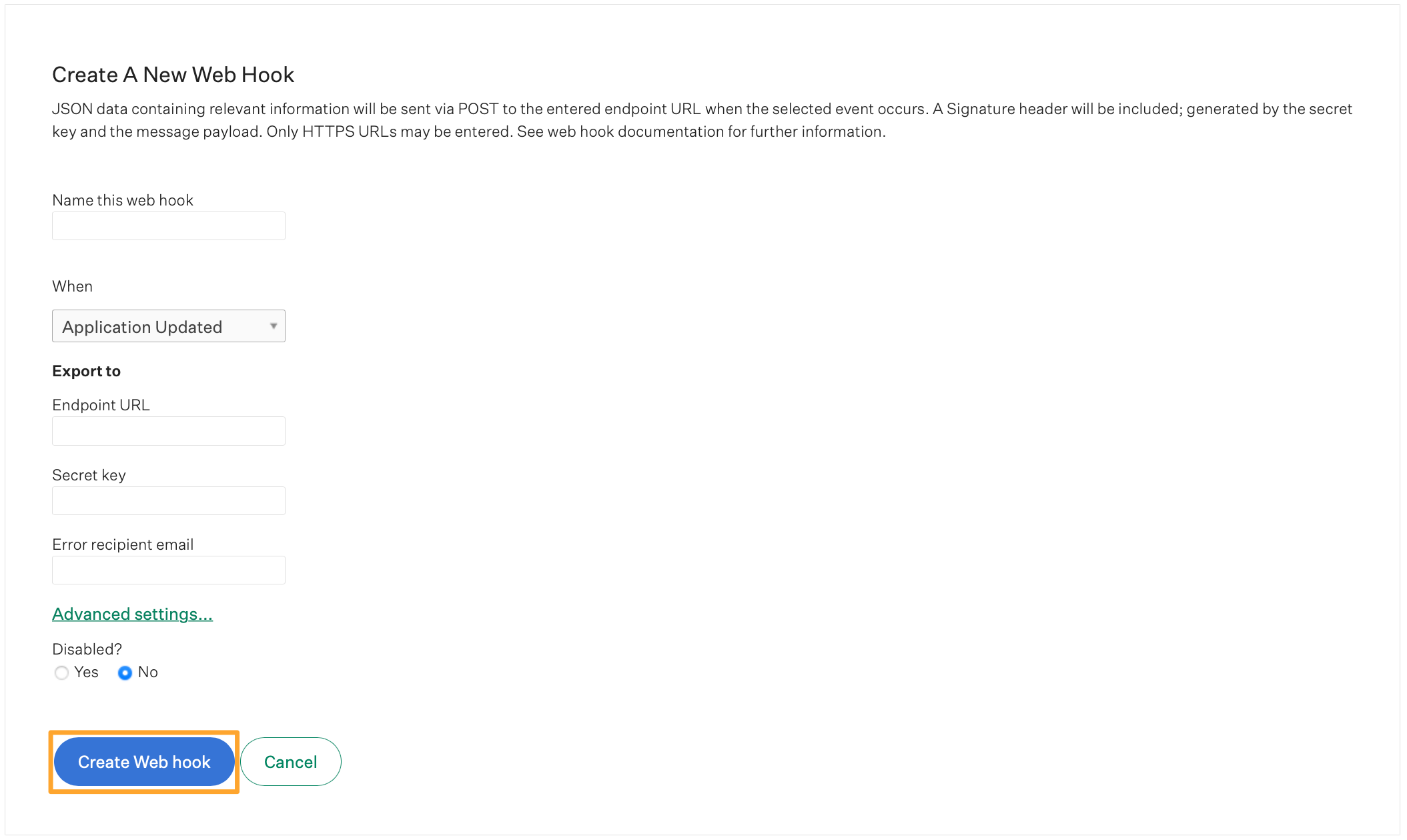
Use the URL the Console gives you verbatim
A URL with your board token appended reads its settings from somewhere else entirely and will reject every delivery, while still returning success to Greenhouse.
6. Verification
Run all four before going live.
6.1 Listings
Open the careers site at your hostname. Your live Greenhouse roles should appear, in your brand.
6.2 Hosted apply
- Apply through the careers site and complete the Trust Check on a phone.
- In Greenhouse, confirm the candidate appears, sits in Human Verification, and has the Polyguard Verification Token field populated.
6.3 Direct apply
- Apply through your public Greenhouse board, using a different email address than 6.2.
- Confirm the Trust Check email arrives.
- Complete it and confirm the application advances into Human Verification.
Use a different email
Reusing the one from 6.2 matches the verification already cached for that job, so the application advances immediately and the email path is never exercised.
6.4 Manual override
Tools → Manual verify, with the link id of a candidate you confirmed some other way, advances that application. One use per link.
7. Using PreScreen
Day to day
Nothing to do. Applications arrive, candidates verify, and verified candidates advance into Human Verification with the token recorded on the application. Candidates who never verify stay in the first stage until their Trust Check expires.
Operator tools
| Console location | What it does |
|---|---|
| Tools → Manual verify | Advance a candidate verified out of band |
| Tools → Send test email | Send yourself a Trust Check to confirm delivery |
| Analytics | Trust Check funnel for the account |
| Settings → Prescreen → Branding | Company name, colors, logo and theme |
Adding a job later
New jobs need the Human Verification stage in second position (3d). Everything else is account-wide and already configured.
8. Troubleshooting
Applications never advance, and Greenhouse reports no errors
Both receivers answer HTTP 200 even when they reject a delivery, because a non-2xx would make Greenhouse disable the web hook. A wrong secret therefore looks identical to a working one from the Greenhouse side. Check the web hook's recent deliveries, then confirm the secret matches character for character on both sides.
The candidate advances but the token field stays empty
The Harvest key is missing Applications → Patch: Edit Application (3f). The write is refused with a 403 while the stage move still succeeds.
Nothing reaches Polyguard at all
Confirm the web hook endpoint is exactly the URL the Console shows. A URL with /<your-board-token> appended resolves its settings from the deployment's own store rather than from the Console, so every delivery fails its signature check.
A change in the Console has not taken effect
Configuration is cached for 60 seconds. Wait a minute and retry. Branding is the exception: see below.
Branding changes do not appear on the careers site
Give it up to an hour. The careers index and the job pages are rendered ahead of time and refreshed hourly, so a branding change is picked up at the next refresh rather than on the next page load.
A field left blank in the Console falls back to the deployment's own configuration, and a value the site rejects as unsafe (a logo or site URL that is not https://, a color that is not a valid CSS color) falls back the same way, so check the value if one field stays on the old branding while the rest update.
The Trust Check invitation email still takes its company name from the deployment configuration, not from these fields.
The careers site shows no roles
Either the board token is wrong (3b), or the provider selected in the Console does not match the one the deployment is running. A mismatch is silent: the Console settings are simply ignored.
A candidate was never emailed a Trust Check
Applications with no source, or with a source listed in Manual source names, are treated as recruiter entries and deliberately never emailed. A recruiter adding a candidate by hand has already decided they belong in the pipeline.
9. Support
- Email: [email protected]
- Console: console.polyguard.ai
- Sending Trust Check emails from your own domain: Sending From Your Domain
Greenhouse documentation
- Create a job board API key for an integration
- Create Harvest API credentials for an integration
- Manage Harvest API credentials permissions
- Create a new custom application field
- Interview plan overview
- Edit job stage in bulk
- Find your Greenhouse Recruiting user ID
- Create a webhook
- Recruiting Webhooks: signature and events
- Harvest API
- Job Board API
For Greenhouse platform issues unrelated to Polyguard, contact your Greenhouse administrator or Greenhouse Support.